Understanding Immediate Translation Button and Full Item Translation
Option 1: Immediate Translation Button
This tool is ideal for scenarios where you need to provide quick and basic translations for individual pieces of content on your website.
The step-by-step instructions for activating it are available here.
Let's detail down how this translation button works:
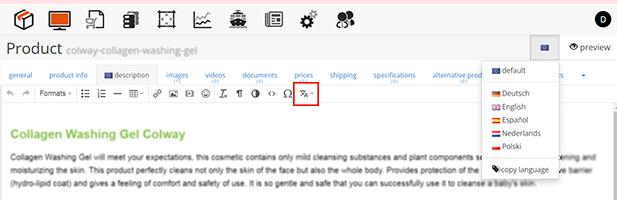
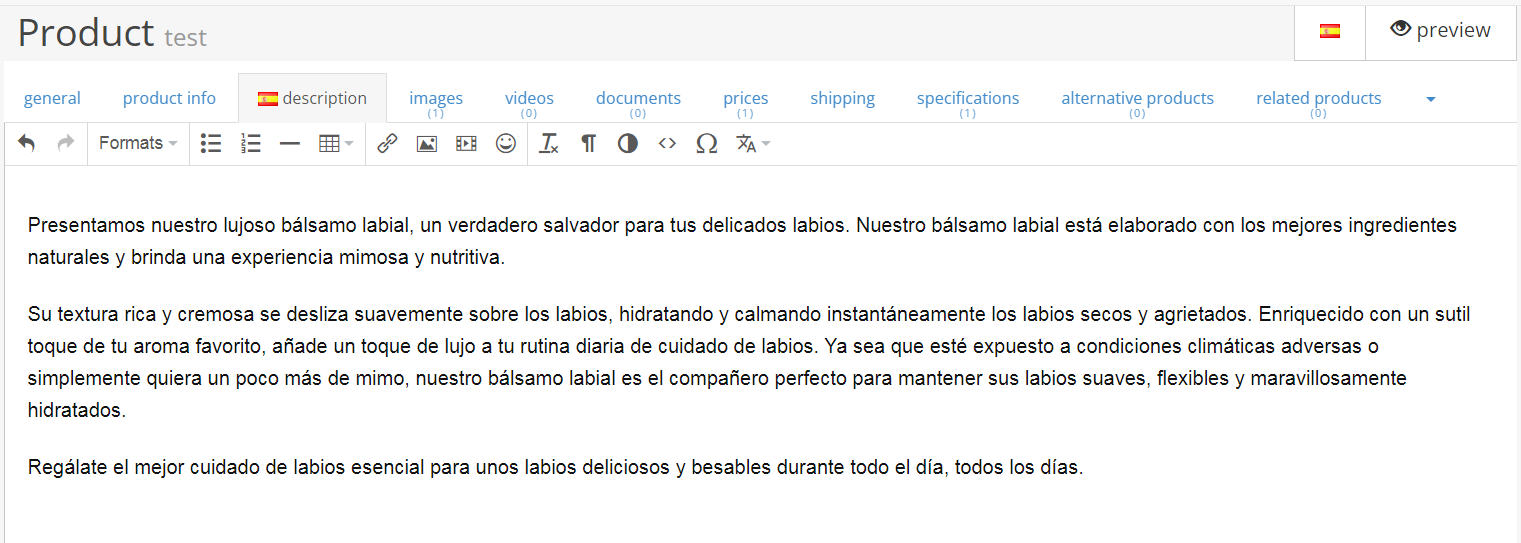
Button for Immediate Translation: An additional button is visible within the user interface (see image above). This button allows users to translate the content displayed on the webpage into another language.
Instantaneous Translation: Upon clicking the translation button, the system immediately translates the current text into the selected language. This quick and simple process ensures that the translated content is available instantly.
Automatic Saving: Not only is the translation done in real-time, but the new text is also automatically saved.
Option 2: Full Item Translation
Full Item Translation is suitable for websites or webshops that operate in multiple languages.
Here's how it works:
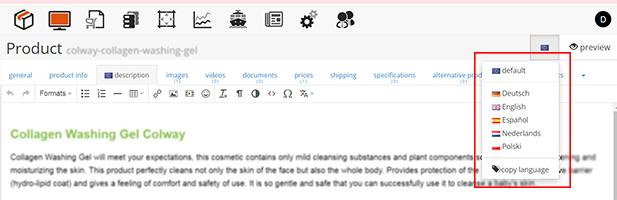
Language Switching: In a Full Item Translation system, a language switcher is available in every edit form to create or change a product, article or any other type of content. This switcher allows users to choose the language they want to edit or view the content in.
Default Content: Each product or item has a default language, which serves as the primary language for that item. For example, a Dutch webshop may have Dutch as the default language, while an international webshop might choose English or another language as the default.
Optional Multilingual Content: While the default language contains the essential product information, users can also add content in other languages. However, this additional content is optional. If a visitor's preferred language is not available, they will see the default language content.
Selective Translation: Not all fields within an item are translatable. Only fields marked with a flag can be translated. For instance, details like the brand may remain untranslated as they do not require translation, while fields like the model may need translation.
Separate Language Versions: Editing content in a previously unused language creates separate versions for each language. Any changes made in one language version do not affect others. If you switch back to the default language and make updates, they won't be reflected in the other language versions.
Automatic Translation: To streamline the process, Full Item Translation provides an automatic translate option. See instructions below.
-> Step-by-step instructions for Automatic Translation:
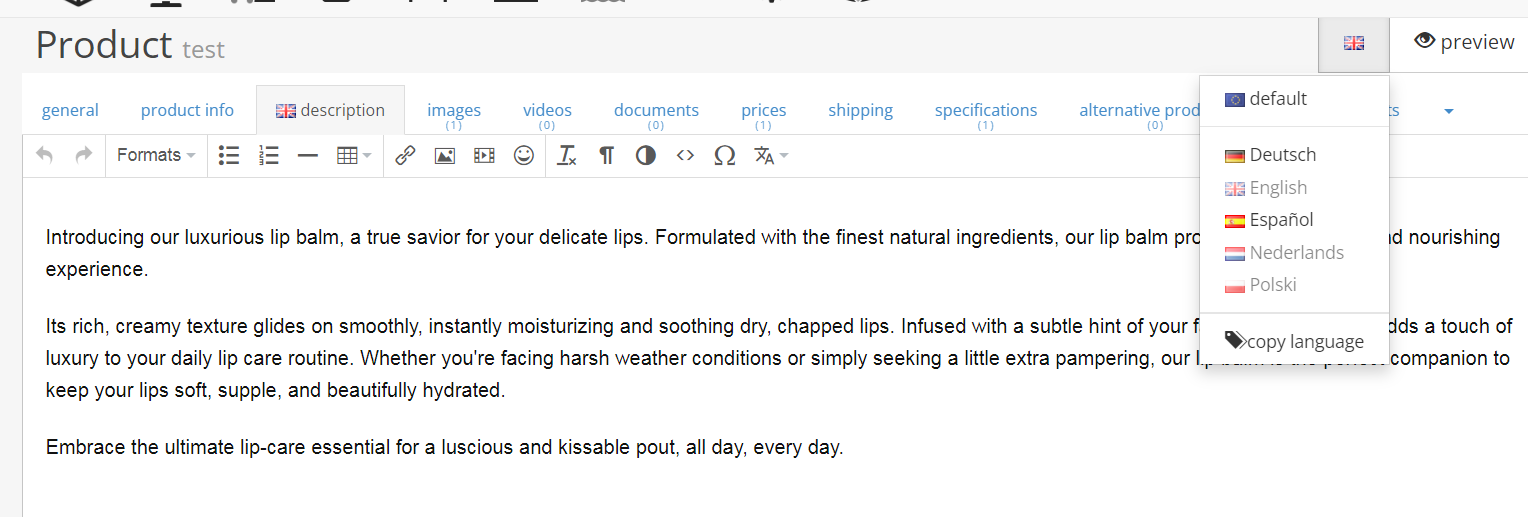
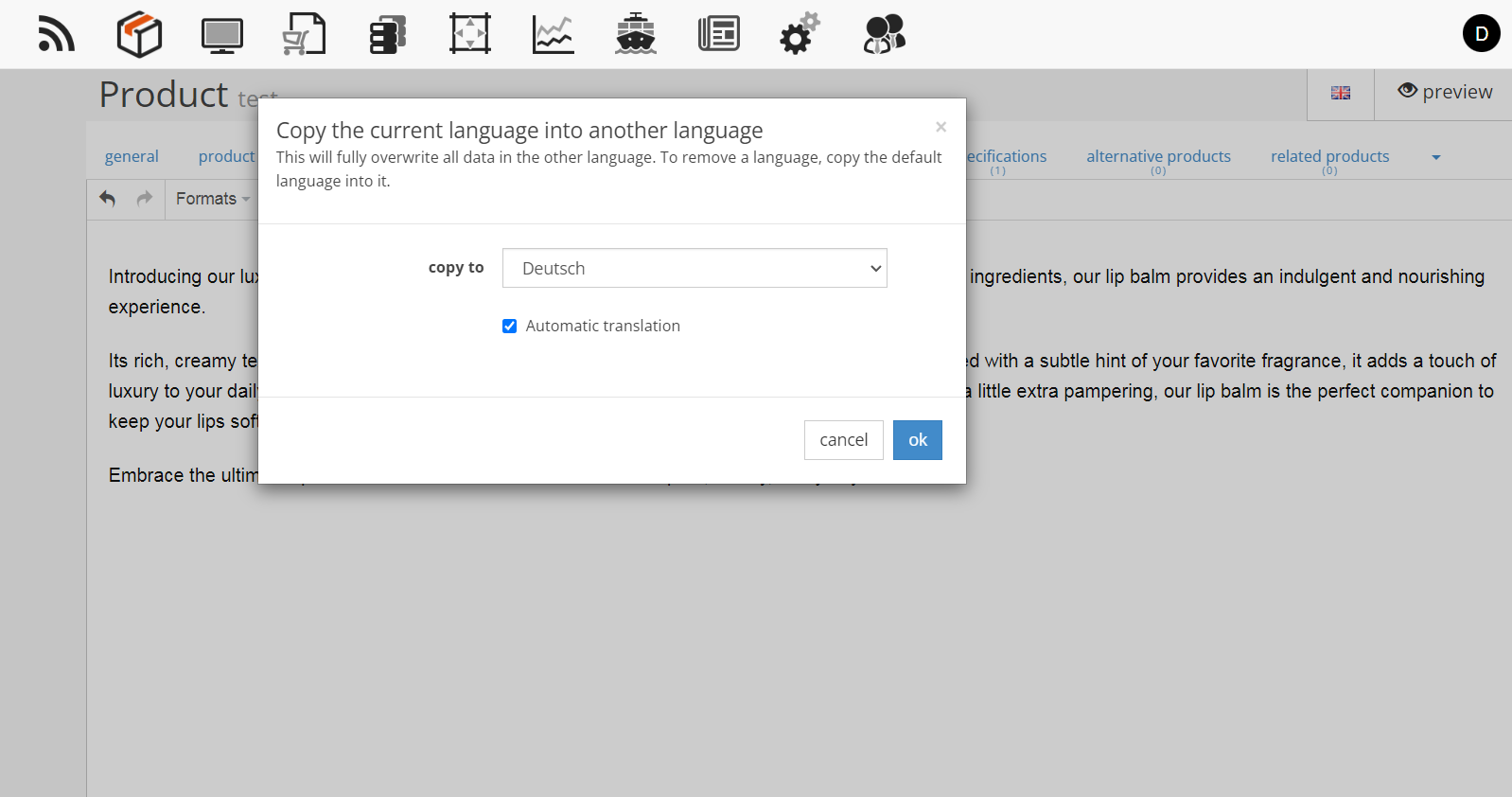
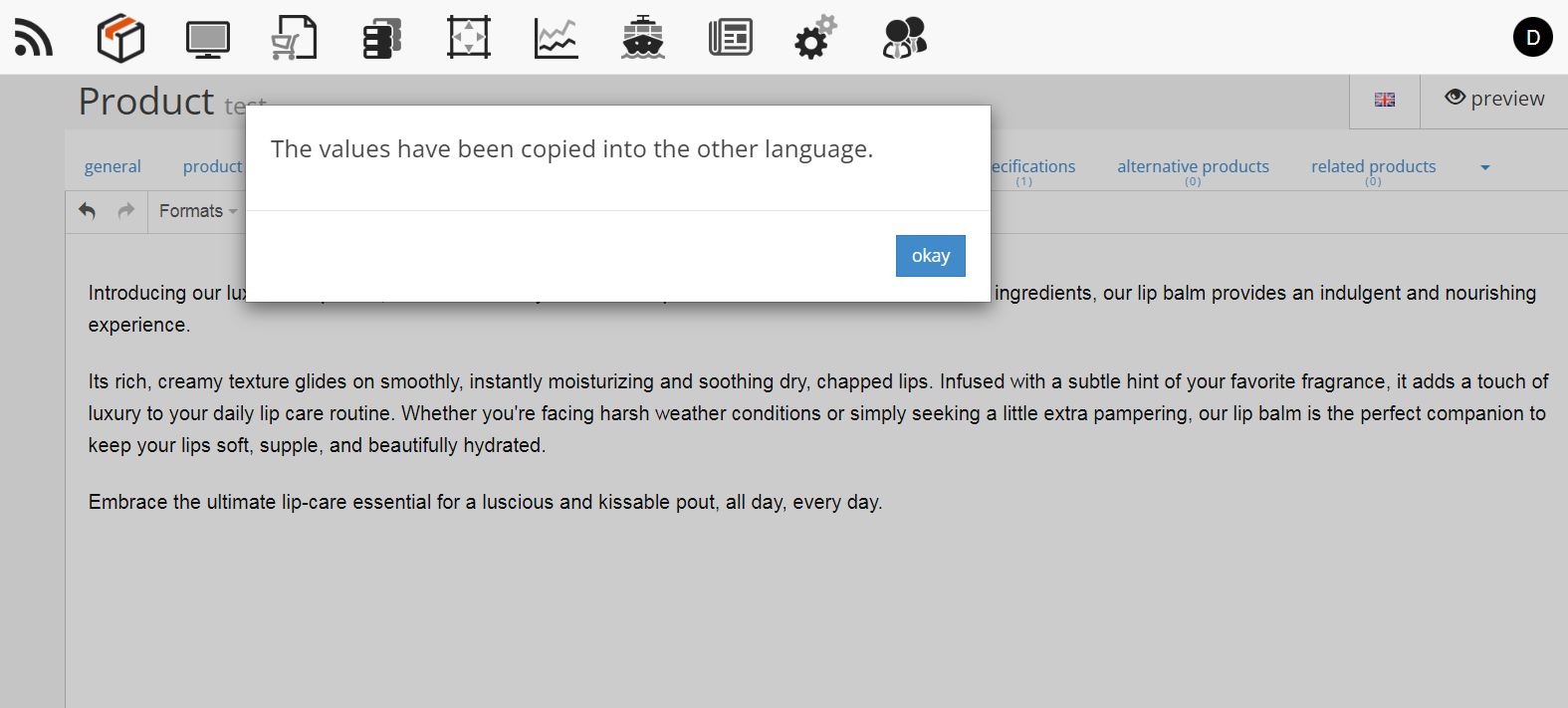
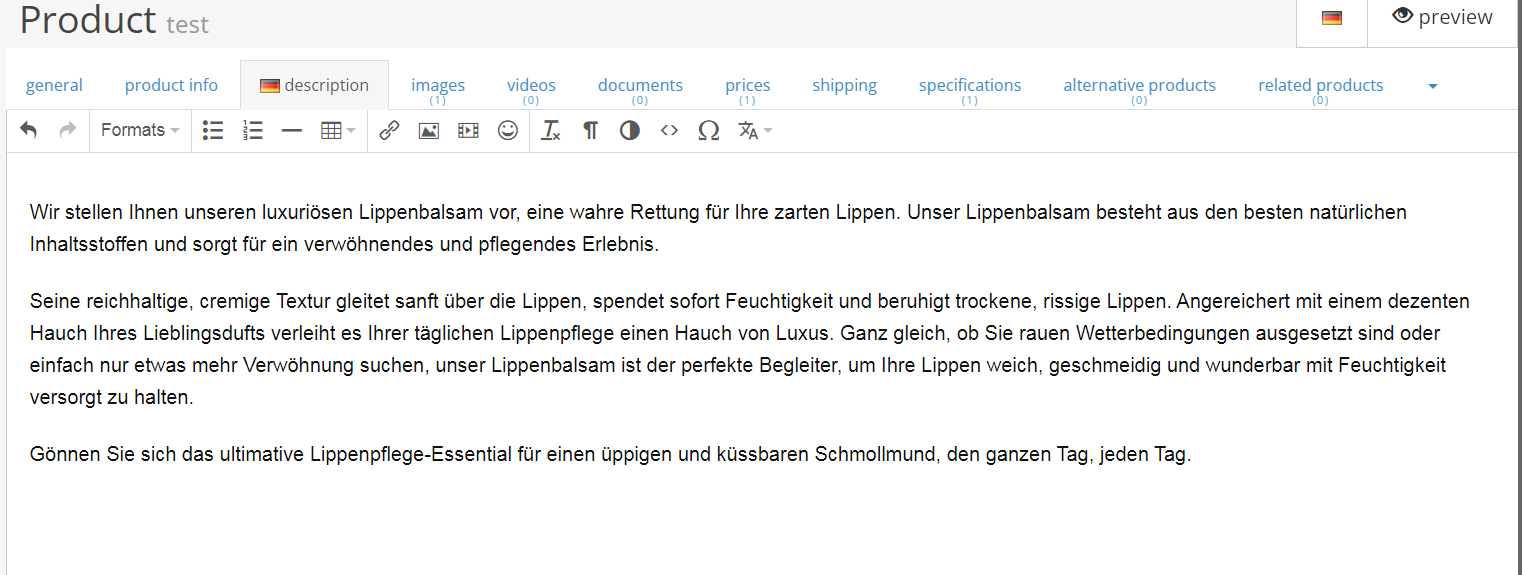
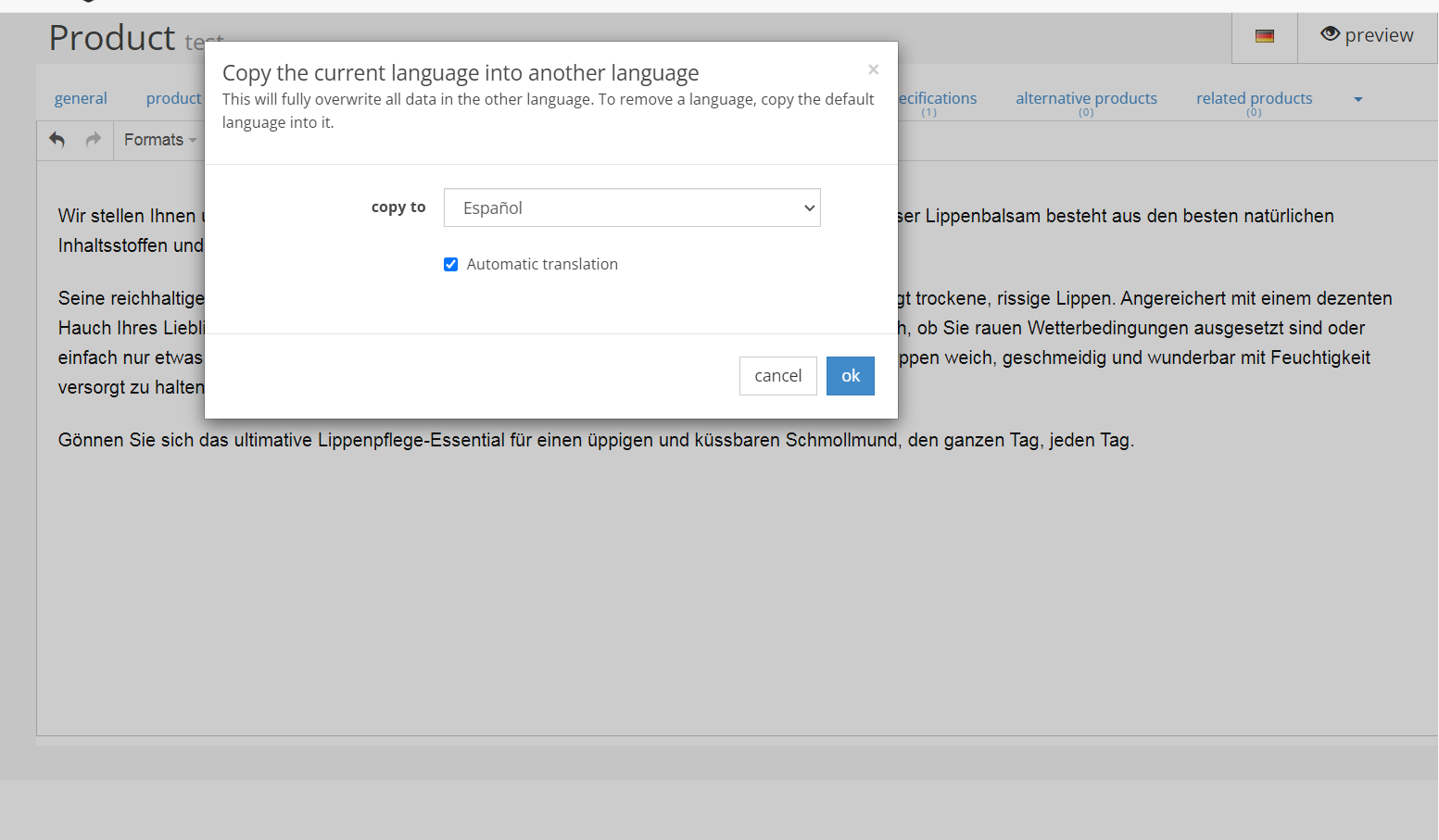
Choose your desired language, such as English, and write down the all information you need. Next, navigate to the language menu and select Copy Language. A pop-up window will display a list of available languages; choose one, for example, German, and ensure to tick the "Automatic Translation" box. Then, return to the language menu and select German. You'll find the translated information ready for you.
Repeat these steps for other languages as needed. In the accompanying images below, the transition from English to German and German to Spanish is visible.
In summary, the Immediate Translation Button is a simple and direct approach suitable for translating individual pieces of content instantly. On the other hand, Full Item Translation is a more comprehensive solution designed for multilingual websites, allowing users to manage content in multiple languages while keeping the default language as a reference point.
all comments
write a comment